Article
Using a tablet as a second screen
A tablet looks like free screen real estate. For some workflows it is. For others it is a neck tax with a pretty bezel: an always-tilted panel that pulls your eyes off the primary display and never quite becomes a real monitor.
This guide helps you decide when a tablet sidecar is worth it, how to place it, and when to stop pretending and use a proper display instead. It is practical setup guidance, not medical advice.
At a glance
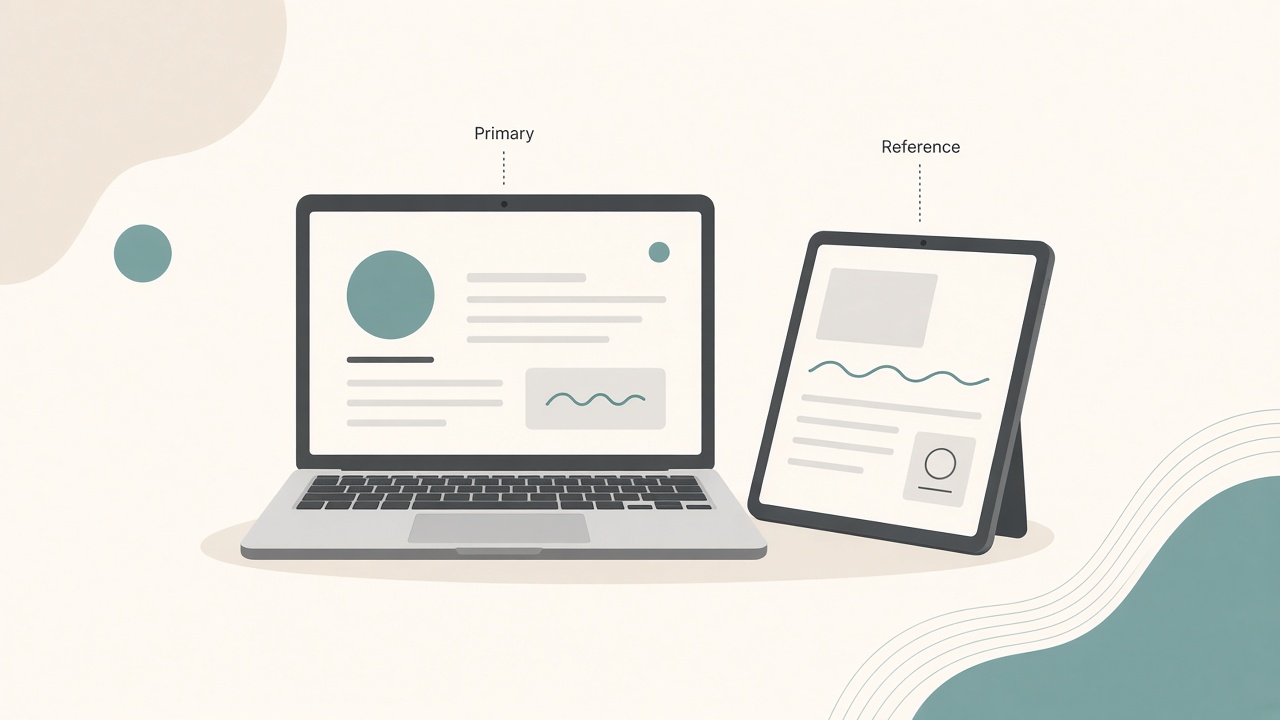
Tablet as reference beside the primary laptop.
What a tablet second screen is good at
Tablets shine as supporting stages, not as primary canvases for dense text. They work well for reference docs, specs, or a style guide while you write or code on the laptop. They also work for chat or calendar parked away from the drafting window, sketch or markup tools if you already draw on the tablet, and lightweight controls such as a timer, music panel, or checklist.
They struggle when you need long lines of code or spreadsheets at readable size, precise cursor work across a large desktop, or color-critical comparison at a fixed height matching your main screen. If your second-screen job is mostly reading dense UI for hours, a tablet is usually the wrong tool.
Decision test before you buy a stand
Before installing apps and buying mounts, run a ten-minute test. List the three windows you most often want visible together. Mark which must stay sharp and large as primary versus glanceable as secondary. Hold the tablet beside your laptop at the height you would actually use, then work for ten minutes.
Notice neck turns, squinting, and how often you resize. If you constantly lean toward the tablet or raise a shoulder, the geometry is already failing. Software will not fix that placement problem.
Placement that reduces neck twist
Height and angle
Match the tablet’s vertical center as close as practical to the laptop screen’s center. A tablet flat on the desk forces a deep downward gaze, which can be fine for short markup and poor for all-day reference.
Use a stand that holds the tablet near vertical, stays stable when you tap, and keeps ports accessible for charging. Landscape mode usually works better for docs and chat. Portrait can help for long web articles or timelines if the stand remains stable.
Horizontal position
Place the tablet on your lower-turn side when possible. Most people do better with the secondary display slightly to one side rather than far outside shoulder width. Keep the gap small. A wide gulf between laptop and tablet creates a tennis-match pattern for your neck.
Primary remains primary
The laptop or external monitor should still hold the active document. The tablet should rarely become the place you type long-form work unless you deliberately switch roles for a sketching session.
Connection options that stay boring
Prefer a boring setup over a clever one. Use a wired connection where possible for lower latency and charging. Choose official or well-supported sidecar and extended-display options for your operating system. Keep a single cable path so undocking does not become a daily puzzle.
Avoid stacking three dongles on a hot laptop hinge. Heat and loose adapters kill focus faster than a missing second screen. Disable auto-lock on the tablet during work blocks if constant re-authentication interrupts flow, then re-enable it when you leave the desk.
Window roles that work
Assign jobs so you are not improvising every hour. For writing, keep the draft on the laptop or monitor and put outline or sources on the tablet. For coding, keep editor and terminal on the primary display and park docs or tickets on the tablet. For design, keep the main canvas primary and use the tablet for a feedback thread. For meetings, keep the call and notes primary and use the tablet only for a short agenda.
If both screens hold important active work, you will thrash. One screen leads; one supports.
When the tablet should graduate to a real monitor
Upgrade when any of these become weekly truths. You need readable text at arm’s length for hours. You keep increasing tablet brightness and still squint. Your neck feels worse on tablet-sidecar days than on single-screen days. You mirror the same dense UI on both devices only to see it bigger.
A modest used IPS monitor plus a simple riser often beats a premium tablet used as a compromised display.
Cable, charge, and clutter rules
Charge the tablet fully before long sessions, or keep it plugged with the cable routed along the back edge. Hide the stand’s footprint behind the laptop when possible so the desk does not feel crowded. Do not leave the tablet as a second notification billboard; use Do Not Disturb on both devices.
A second screen that doubles your interruptions is a net loss, even if the geometry is perfect.
A sane daily routine
Snap the tablet into its stand at matched height. Open only the reference or chat role assigned for the day. Keep the cursor mostly on the primary screen. At end of day, disconnect, wipe the screen, and park the tablet face down or in a sleeve.
Consistency beats clever layouts you rebuild every morning.
Checklist
- Confirmed the tablet’s job is support, not primary dense work
- Ten-minute placement test completed without constant leaning
- Stand holds a near-vertical angle at roughly matched height
- Horizontal gap kept small so turns stay limited
- Connection path is stable, preferably wired when practical
- Window roles assigned as primary versus secondary
- Notifications limited on both devices
- Charging routed without desk spaghetti
- Exit criteria set for upgrading to a real monitor
FAQ
Can a tablet replace a travel monitor?
Sometimes, for reference and light review. For full dual-monitor coding or finance sheets, a purpose-built portable monitor usually wins on size and height.
Is screen mirroring useful?
Rarely as a daily setup. Mirroring can help for demos or markup. Extended desktop is the usual goal for productivity.
What size tablet works best?
Larger tablets are easier to read as sidecars, but only if the stand keeps them high enough. A big tablet flat on the desk is still a posture trap.
Does this help if I already have dual monitors?
Usually no, unless the tablet is a specialized drawing surface. Extra panels without roles create hunting, not focus.
Will this strain my neck?
It can, if the tablet sits too low or too far. Adjust geometry first. If discomfort persists, stop the setup and talk to a qualified clinician. This article is not medical advice.
Next reading
- Second monitor vs ultrawide for writing work
- Dual monitor height alignment
- Laptop riser and external keyboard setup
Use a tablet as a sidecar when the job is glanceable. When the job is dense and long, give your eyes a real screen.