Article
Dual monitor height alignment without neck twist

Two monitors double your space and your chance of living in a constant neck turn. Extra pixels do not help if your torso spends the day angled toward a secondary screen. Alignment beats buying a fancier arm.
This guide covers primary selection, height, distance, and hybrid laptop setups for dual-monitor desks. It is workstation layout advice, not medical guidance about neck conditions.
At a glance
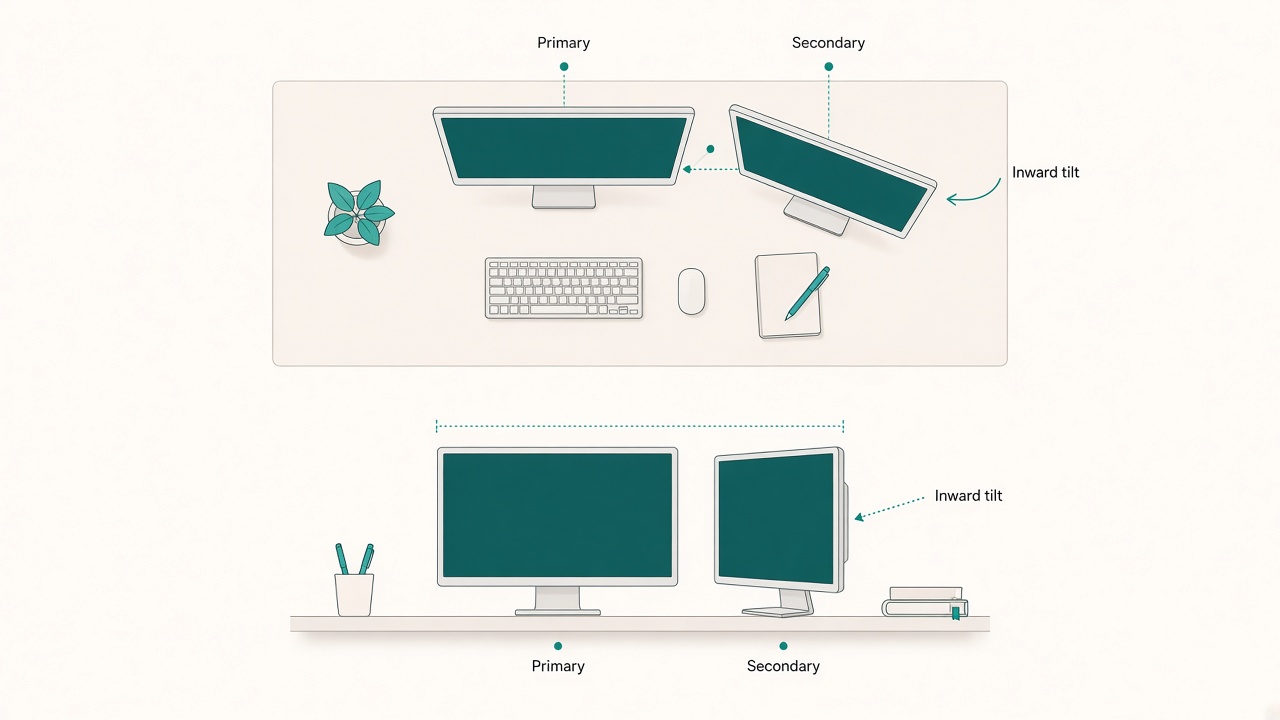
Primary centered; secondary angled inward at equal height.
Choose a true primary
Put the screen you use for typing and deep work directly in front of you. The secondary screen is for reference, chat, or previews—not a second center. If both screens feel equally important, alternate which one is primary by task, but keep your torso squared to the active screen while you work.
A common failure mode is treating a dual setup as two equal centers. That arrangement trains a perpetual half-turn. Pick one centerline for the current task and defend it.
Height and distance for both screens
Keep the tops of both screens near the same height so your eyes do not climb and drop between panes. Set the primary top at or slightly below eye level. Place the primary at a comfortable distance using the monitor distance calculator as a starting band by screen size.
Angle secondary screens inward about 20–30 degrees so you glance with eyes more than spine. Large outward angles force torso rotation for every reference check. Small inward angles keep peripheral glances cheap.
If one screen sits much higher than the other, you will build a diagonal habit even when the primary is centered. Match heights before you polish color profiles or wallpaper.
Laptop plus external monitor hybrids
Raise the laptop to match the external monitor height, then use an external keyboard and mouse. A low laptop beside a high monitor trains a diagonal neck habit that no window layout can fix.
If the laptop remains the secondary screen, treat it as reference only and keep deep typing on the raised primary. If the laptop is temporary and low, close it or move it out of the forward field during long focus blocks rather than half-using it as a tilted third zone.
Arms, clamps, and desk constraints
Monitor arms help when the desk clamp forces the primary off centerline. Reclaim depth, match heights, and pull the primary back to the middle before you accept a twisted posture as permanent. If an arm introduces wobble at your preferred height, stabilize the mount or lower the extension rather than leaning in to chase a shaky image.
On shallow desks, prioritize primary distance and height over a wide secondary angle. A usable single centerline beats a dramatic dual spread that pushes both screens too close.
Window layout that respects the centerline
Software layouts should follow the physical primary. Keep the document, editor, or design canvas on the centered screen. Park chat, email, and reference PDFs on the secondary. When a review requires long reading on the secondary, temporarily promote that screen to primary by rotating your chair and torso to face it—do not spend an hour twisted while calling the other screen primary.
Avoid stacking critical UI on the far outer edge of an ultrawide-plus-secondary combination. Outer edges are for glanceable status, not for typing targets.
A fifteen-minute alignment audit
Work for fifteen minutes on a real task, then notice three things. Ask whether you are twisted toward the secondary for long stretches. Ask whether the primary is off-center because a clamp or cable forced it. Ask whether you lean in only on one screen.
Fix centerline first. Then polish pixel density, scaling, and color matching. Matching brightness across screens also reduces the urge to lean toward the “clearer” panel.
Scaling and text size across mismatched panels
Dual setups often mix a sharp laptop panel with a larger external display. If text looks tiny on one screen and huge on the other, you will lean toward the harder panel. Set OS scaling so both screens are readable at the same seated posture. Prefer readable type on both over perfect pixel-for-pixel matching.
When one panel must stay denser for design work, keep that panel as primary during those sessions and accept the secondary as lower-stakes reference. Do not punish your posture to preserve a symmetrical wallpaper.
Meeting and screen-share days
On call-heavy days, place the meeting window near camera height on the primary so you are not staring at a bottom corner while facing the lens. Keep notes on the secondary if needed, but avoid a permanent twist toward chat. After a long call block, return the deep-work canvas to the centered primary before the next focus session.
If you share slides from the secondary, glance with eyes when possible and reserve torso turns for short checks. Continuous presentation mode is a reason to promote that screen to temporary primary.
Common dual-monitor mistakes
Centering the bezel gap instead of the primary content area leaves your typing target off to one side. Matching brand aesthetics before matching height creates a neat desk with a crooked neck habit. Using a low laptop as a permanent secondary without a riser recreates the diagonal problem every morning. Spreading three or more active panes across both screens turns every task into a scanning exercise.
Reduce active panes first. Alignment cannot rescue an attention layout that asks you to watch everything at once.
Checklist
- One true primary chosen for the current task type
- Torso squared to the primary while typing
- Tops of both screens near the same height
- Primary top at or slightly below eye level
- Primary distance checked against a comfort band for screen size
- Secondary angled inward about 20–30 degrees
- Laptop raised with external keyboard if used in the dual setup
- Clamp or arm adjusted so the primary sits on centerline
- Scaling set so both screens are readable without leaning
- Fifteen-minute audit completed on a real task
FAQ
Should both monitors be identical?
Matching sizes simplifies height and scaling, but it is not required. Alignment and readable scaling matter more than buying a second identical panel on day one.
Is a vertical secondary monitor a good idea?
It can help for documents or timelines if the top stays near the primary top and the angle stays mild. A tall secondary that forces constant upward gaze recreates the height mismatch problem.
What if my desk is too narrow for a centered primary?
Use a monitor arm to reclaim depth, or accept a smaller secondary angle. Protecting centerline beats forcing a wide dual spread on a shallow surface.
Can software window managers replace physical alignment?
They help organize panes. They cannot fix a low laptop beside a high monitor or a primary parked off to the side by a clamp.
How often should I re-check alignment?
Recheck after any desk move, arm adjustment, or laptop-docking change. A quick audit after setup changes prevents old diagonal habits from returning.
Next reading
Protect the centerline first. When the primary sits straight ahead at a matched height and the secondary stays a mild glance away, dual monitors add space instead of adding twist.
Related tools: monitor distance