Article
Monitor distance and eye strain for desk work
Eye strain at a desk is often a stacking problem: the screen sits too close, brightness fights the room, and long focus sessions run without a true distance reset. Fixing one layer helps; fixing distance, height, glare, and rhythm together helps more. This guide offers practical viewing ranges, height and tilt cues, multi-monitor notes, and a short daily reset. It is educational desk hygiene—not medical advice. Ongoing vision concerns belong with a qualified eye-care professional.
At a glance
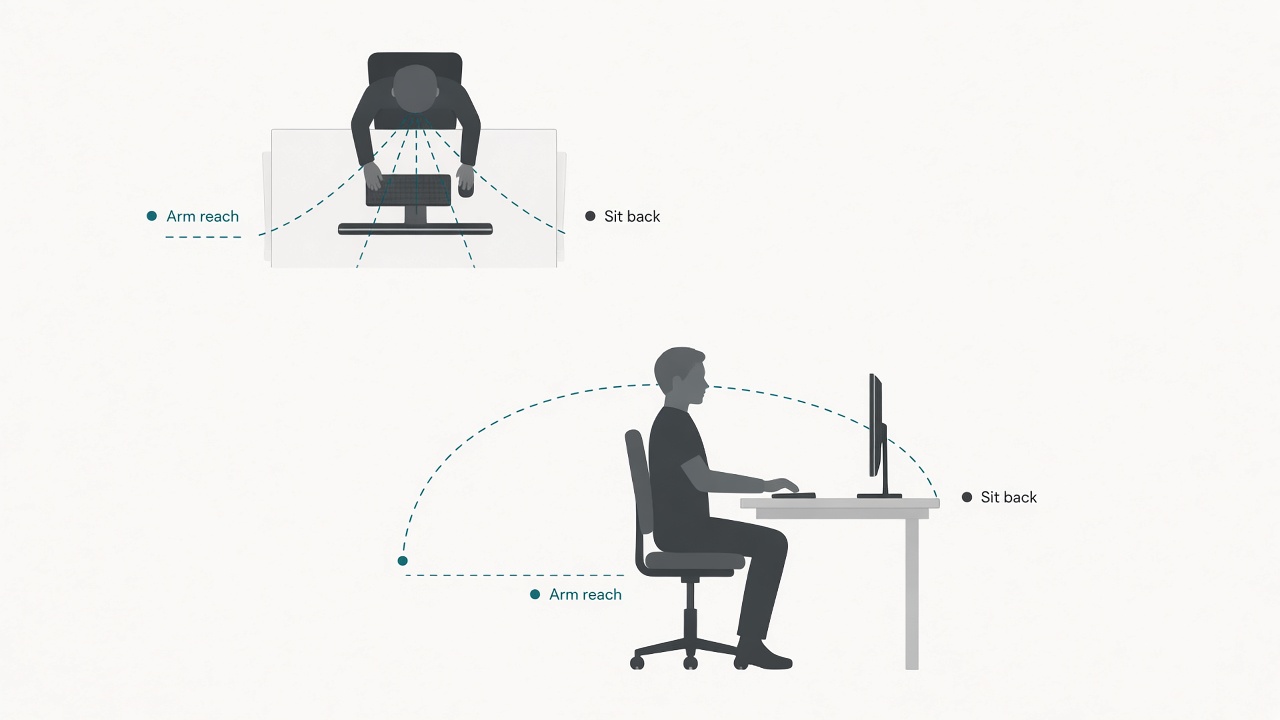
Start near arm’s length, then refine for your screen.
Why distance becomes a fatigue multiplier
Knowledge work locks your eyes on a narrow depth of field for hours. Paper stacks, hallway glances, and whiteboards naturally change focus distance. A single monitor at a fixed range does not. When that range is also too close, you combine sustained near focus with a forward head lean that feels like “concentration” and behaves like a posture tax.
Small text makes the problem worse. People pull the chair in, raise brightness, and skip breaks, then blame the display brand. Distance is the first lever because it is measurable and reversible. Brightness matching and breaks still matter; they work better after geometry is sane.
Laptop-only setups usually place the panel both too low and too close. Raise the machine, add an external keyboard, then rejudge distance. Do not treat a low deck as a vision problem alone.
A usable distance rule you can test today
For everyday 24–32 inch monitors, start near an arm’s length, then adjust with diagonal size and text scaling. Sit back normally, extend one arm toward the glass, and notice whether fingertips roughly reach the screen on mid-size panels. The monitor distance calculator gives a comfort band you can test in five minutes instead of guessing from memory.
If you lean in to read, increase text size or OS scaling before pulling the monitor closer. If you feel you are squinting across a parking lot, move closer or enlarge interface scaling. Ultrawide panels often need a touch more distance than a small office display; curved screens change preferred depth slightly, but the lean-in test still applies.
Write down the distance that felt calm after a twenty-minute reading block. Measuring once beats re-litigating the setup every Monday.
Screen height and tilt support the distance choice
Distance fails when height forces a nod or a crane. Keep the top of the active screen at or slightly below eye level for most text work. Tilt the screen so the face sits roughly perpendicular to your gaze rather than reflecting overhead lights into your eyes.
Avoid placing a bright uncovered window directly behind the monitor. The eye then fights glare and contrast at the same time, which tempts you to lean closer. Side windows need a slight screen angle or a sheer curtain more often than they need a new panel.
If you wear progressive lenses, you may prefer the screen a little lower so you can view through the correct part of the lens without tipping the chin. That is a fitting issue with your lenses and desk, not a reason to sit unusually close. Adjust height first, then revisit distance.
Brightness, text size, and window layout
A bright panel in a dim room creates harsh contrast. A dim panel in a sunny room invites squinting and forward lean. Match the display to the room: open a light document and a dark UI, then adjust until the white page does not glow like a lamp and dark chrome remains readable. Recheck after lunch when daylight shifts.
Enlarge the primary working window instead of tiling three unreadably small panes. Writers and developers often gain more comfort from one enlarged editor than from another centimeter of monitor travel. Secondary references can live on a second screen at similar height, angled inward, so your neck does not become a hinge toward a side panel all day.
Night modes and warmer color profiles can help evening contrast comfort for some people. They do not replace distance, scaling, and glare control. Treat them as optional polish after the basics.
A two-minute reset that survives real deadlines
Every 20–30 minutes, change focus distance on purpose.
- Look at something farther than about 6 meters for roughly 20 seconds.
- Blink deliberately a few times when your gaze feels “stuck open.”
- Check that your shoulders did not creep upward while you leaned in.
Attach the reset to existing cues: after sending a message, after a meeting ends, or when a build finishes. Timer apps help some desks; cue-based resets help others. Pick the version you will still run on a chaotic Thursday.
Standing or rolling the chair back once per hour resets more than the eyes. A full posture change makes the next near-focus block cheaper.
Multi-monitor and laptop notes
Center the primary screen in front of you. Angle secondary screens inward about 10–30 degrees so you glance with the eyes more than with the torso. A reference monitor that sits too high, too low, or too far to the side recreates the same fatigue pattern a low laptop creates for the neck.
Matched heights matter more than matched brands. If one panel is a laptop on a low deck beside a proper monitor, raise the laptop or stop using it as a primary reading surface during long blocks. For pure laptop days, a riser plus external keyboard is the distance-and-height package; the built-in trackpad can remain, but the screen needs height independence.
Meeting-heavy days add face tracking and slide windows. Keep the active speaker near camera height so you are not staring into a bottom corner while the monitor distance was carefully set for documents.
When accessories help—and when they do not
Anti-glare films, monitor arms, and blue-tinted marketing claims arrive after geometry. An arm is worth considering when you need frequent depth changes or dual-screen curves; a solid riser is enough when you only need a few centimeters of height. Films can reduce reflections in harsh rooms; they cannot fix a screen pressed within hand-kissing range.
If you still get late-day discomfort after distance, height, glare, scaling, and breaks look reasonable, stop escalating DIY purchases and seek professional eye-care input. Desk hygiene has limits; this guide stays on the controllable workplace side of those limits.
Checklist
- Starting distance tested near arm’s length, then refined by screen size
- Text/UI scaling increased before pulling the monitor closer
- Top of screen at or slightly below eye level
- Screen tilted to reduce glare rather than to chase a steep angle
- Brightness matched to room light day and evening
- Primary window enlarged; avoided tiny multi-pane reading
- Secondary monitors angled inward at similar height
- 20–30 minute far-focus reset attached to a real cue
- Laptop raised with external keyboard when used as the main display
FAQ
How far should my monitor be?
Begin near an arm’s length for many 24–27 inch screens, then adjust using the monitor distance calculator and a lean-in test. Larger or ultrawide panels often sit a bit farther; readable text matters more than a single magic number.
Does sitting farther always reduce eye strain?
Not if you then lean forward to parse tiny type. Increase scaling or move closer until you can sit back and still read. Excess distance with undersized text recreates the problem.
What is the 20-20-20 idea in plain terms?
About every 20 minutes, look at something roughly 20 feet (about 6 meters) away for about 20 seconds. Exact precision matters less than actually changing focus distance during long near work.
Will a bigger monitor fix distance issues?
Sometimes. A larger panel can let you sit slightly farther while keeping text readable, but only if you raise scaling and place the screen at a sensible height. A bigger screen shoved too close can feel worse.
Can night mode replace breaks?
No. Warmer evening profiles may improve comfort for some people, but they do not substitute for distance resets, blink breaks, or glare control.
Related tools: monitor distance