Article
When a monitor arm is worth buying

Monitor arms look like the default “serious desk” upgrade. Sometimes they transform a setup. Sometimes they cost more than the problem they solve, and a stable riser would have been enough. The decision hangs on height, depth, desk real estate, and how often you change posture. Use this guide to decide with measurements and constraints, not with catalog photography.
At a glance
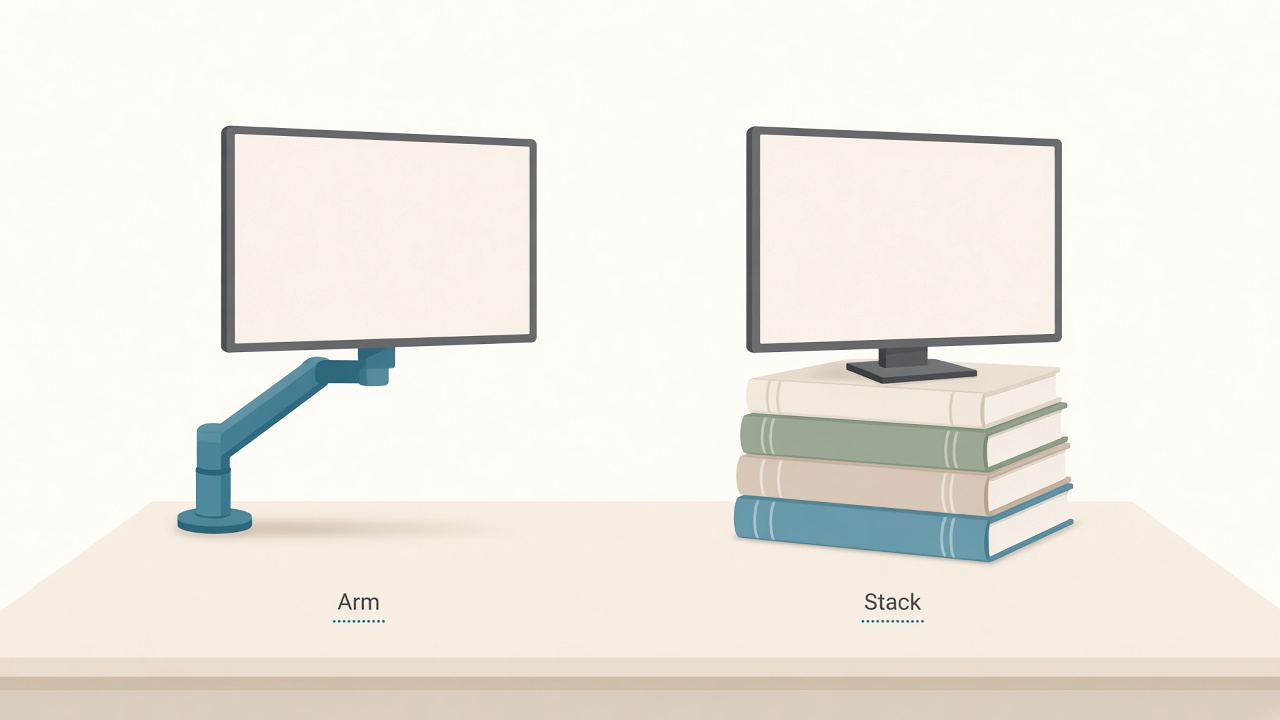
Arms free desk space; stacks work until they do not.
What an arm actually buys you
A proper arm gives independent height without stacking unstable objects, depth control to pull the screen closer for reading or push it away for shared glances, desk-surface recovery because the footprint shrinks to a clamp or grommet, and—depending on mount—friendlier sit/stand geometry as desk height changes.
If you only need two centimeters of height and never move the screen, you are shopping for a riser, not an arm. Catalog photos emphasize sweep and color; your decision should emphasize whether you repeatedly fight height, depth, dual angles, or surface clutter. Name the constraint first, then buy hardware second.
Problems an arm fixes well
Many consumer monitors sit short for taller users, especially on thick desks. An arm raises the top third of the screen nearer eye level without a tower of books that blocks the dock.
Built-in stands often push glass farther back than a comfortable viewing distance. Arms let you bring the panel forward while keeping the base out of your keyboard zone.
Two chunky stands waste the middle of the desk and force awkward angles. A dual arm or two singles can float panels on a gentle curve and reduce neck yaw.
If you re-level screens every time you stand, arms attached to the moving desktop can reduce fiddling. Test stiffness after install; cheap arms droop when you type nearby.
When books, a riser, or a better stand are enough
Skip the arm for now if most of these are true: one monitor rarely moved, a small height gap solved by a solid riser or the manufacturer’s taller stand, a desk that cannot accept a clamp and has no grommet, a budget better spent on keyboard, chair support, or glare-killing light, or a missing VESA pattern where adapters add wobble you hate.
A wide, non-slip riser that leaves ports accessible is a legitimate long-term solution, not a failure state. Skipping straight to a premium arm on a chaotic desk rarely feels transformative. Fix the constraint you named, with the cheapest stable method that survives a real workweek.
Check compatibility before you buy
Confirm the monitor’s VESA pattern, commonly 75×75 or 100×100. Match the arm’s weight range to the panel only, not the old stand, and stay inside the mid-range of the spring rather than at the extreme. Check desk thickness, edge shape, and underside clearance with cable trays. Treat ultrawides with caution; long panels need stiffer arms, and droop is common on bargain gear. If you also mount a laptop tray, treat weight and heat separately.
If the product page hides weight specs, treat that omission as a buying signal to walk away.
Decide with a thirty-minute walkthrough
Sit in your normal working posture and note where your eyes hit the current screen. Measure viewing distance from eyes to glass; constant leaning usually means depth is the issue. Stack stable books temporarily to the height you want and work that way for two days. If temporary height solves it and you never need to move the screen, buy a solid riser sized to that stack. If you keep rebuilding the stack, need to pull the screen forward past the stand’s footprint, or juggle two chunky bases, shortlist arms that match VESA and weight. Check the desk edge for clamp conflicts with cable trays before you click buy.
Install carefully afterward. Set seated posture first with eyes near the upper third of the screen, then tighten rotation. Route cables with a service loop so sit/stand travel does not yank connectors. Do not clamp over fragile finishes without pads, and do not mount to a wobbly thin top without reinforcement—arm leverage amplifies shake.
Spend in a sensible order: fix chair and desk height first, raise or distance the screen with the cheapest stable method next, buy an arm when you need frequent repositioning, dual-screen geometry, or surface space, and chase aesthetics last.
Dual-monitor specifics
Matched heights matter more than matched brands. Decide on a primary screen for reading and a secondary for reference. Angle the secondary inward about 10–30 degrees so you glance with eyes more than with torso. If a single dual mount droops, two separate arms are often the quieter long-term path.
After install, spend one typing session watching for bounce when you strike keys hard or when you adjust the desk. A usable arm holds position without constant retightening. If you need tools every morning to stop droop, the arm is under-specified for the panel, not “broken in.” Recheck cable loops the first time you move from sitting to standing so power and video leads are not quietly taking strain behind the clamp.
Checklist
- Named the actual problem: height, depth, space, dual angle, or sit/stand fiddling
- Measured whether a riser already solves height within a few centimeters
- Confirmed VESA size and monitor weight against arm ratings
- Checked desk clamp or grommet feasibility and underside clearance
- Planned cable loops for current or future sit/stand travel
- Compared cost against higher-priority gaps in keyboard, chair, or light
- Tested stiffness after install during a typical typing session
FAQ
Will an arm fix eye strain by itself?
No. It helps you place the screen where your posture already wants to be. Brightness, text size, breaks, and distance still matter.
Gas spring or mechanical arm?
Gas springs adjust quickly and suit frequent movers; they must match weight closely. Mechanical arms can be steadier for set-and-forget setups. Choose based on how often you reposition.
Can I mount two ultrawides on one clamp?
Sometimes, with heavy-duty dual arms and a strong desk. Many home desks flex. When in doubt, two separate mounts or a purpose-rated system beats a bargain dual arm at its limit.
What if my monitor is not VESA?
Use manufacturer stands, non-VESA risers, or official adapters only. Improvised brackets are how panels meet the floor.
Are arms safe on standing desks?
Yes if rated and installed on the moving surface with cables managed. Attach to a wall instead if the desktop is too thin, and accept that wall mounts do not rise with a sit/stand desk.