Article
Map peripheral reach to cut shoulder strain

Most desk discomfort is not mysterious. It is repetitive reaching. The mouse lives too far right, the coffee sits past the keyboard, and the notebook waits behind the monitor. Shoulders become delivery drivers for a bad layout.
A peripheral reach map is a ten-minute desk audit that places high-frequency objects inside a comfortable arc. This is practical setup guidance, not a diagnosis or treatment plan.
At a glance
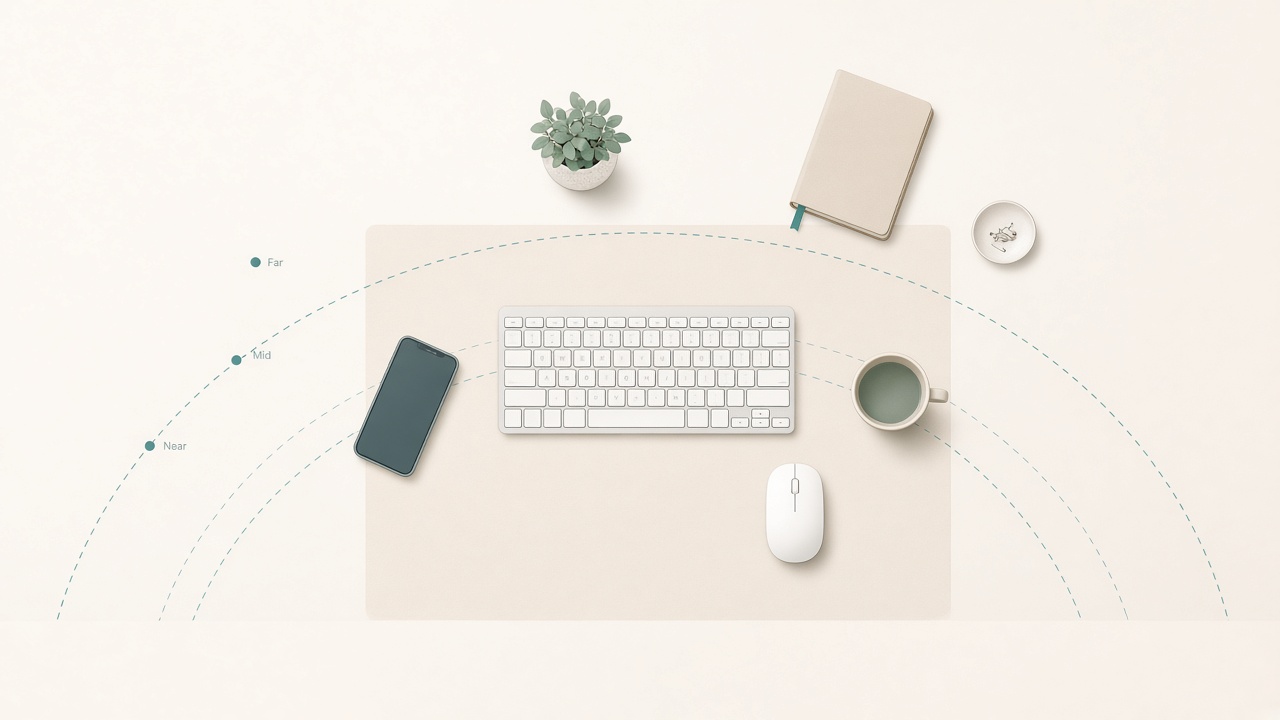
Near for daily tools; far for rare ones.
Draw the arc before you buy anything
Sit in your normal posture with elbows near your sides. Sweep each forearm in a horizontal arc across the desk without leaning your trunk. The primary zone is where fingertips land easily with elbows bent near 90 degrees; it belongs to keyboard, mouse, and the one tool you touch constantly. The secondary zone allows a slight lean or elbow-angle change; it belongs to notebook, pen, and drink. The tertiary zone is stand-up reach for reference books, chargers, and occasional gadgets.
Anything you touch more than a few times an hour belongs in primary or secondary—not tertiary. Buying new accessories before drawing the arc usually relocates the same reach problem.
Place the big three first
Center the keyboard so the B key sits on your body midline, not on the laptop or monitor midline if those differ. Many people center the whole board including a number pad, which pushes the mouse outward and loads the right shoulder. If you rarely use the number pad, a compact keyboard moves the mouse inward.
Park the mouse or trackpad immediately beside the keyboard at the same height. The classic failure is a mouse on a lower side tray or far to the right of a full-size board. If your shoulder hikes to “get over” to the mouse, move the mouse in or shrink keyboard width. A central trackpad or alternative pointing device can help some workflows; choose based on repeated tasks, not aesthetics.
Place the drink in the secondary zone on your non-mouse side when possible, on a coaster, with a lid if you gesture while talking. Liquids should not live in the tertiary zone behind power strips.
Map the rest of the frequent set
List objects you touch in a normal two-hour block: notebook, sticky pad, pen, phone, headset, calculator or secondary device, external drive, or authenticator key. Assign each to a zone. If more than three objects claim primary space, you have a clutter problem rather than a reach problem. Store extras upright or in a shallow drawer.
The phone ideally leaves the desk during focus blocks. When it remains, it should not win the primary arc by default.
Height matters as much as distance
A reach that is close but high still loads shoulders. Keep primary peripherals on one plane. Keyboard and mouse should share the same height. Avoid thick mousepad stacks that raise the mouse oddly. Keep the notebook flat beside the keyboard rather than perched on books unless you are writing deliberately for a short session.
If you use a laptop stand, the laptop is a display. Do not reach up to type on it. External input devices at desk height are what make a riser viable.
Left/right placement and shared desks
Right-handed mouse users often ignore left-side secondary storage. Use that side for drink and notebook so the mouse side stays clean. On shared desks, outline keyboard and mouse rectangles with removable tape for a day, learn the positions, then remove the tape. Shared setups drift faster than solo ones.
Test with a thirty-minute work sample
After arranging, do real work for thirty minutes. Notice any time you lean your trunk to grab something. Notice any time a cable yanks a device out of the arc. Notice whether the mouse requires a shoulder slide. Fix those three issues before optimizing cable colors or desk mats. Geometry first.
Standing height changes the map
If you use a sit/stand desk, remap at both heights. When the surface rises, drinks become easier to tip—use a lid or move them slightly inward. A mouse that felt fine while seated may require a shoulder slide if desk thickness or mat position shifts. Notebooks can block wrist space; park them just off the front edge. Cable lengths that were slack while seated may tug devices outward while standing.
Do a thirty-second sweep each time you raise the desk for the first week. After that, the standing map becomes routine. Even if you only sit, recheck the map after any monitor move; displays that slide forward often push keyboards toward your lap and send the mouse outward.
Common mistakes
Pushing everything back to “clear space” places both monitor and peripherals too far, so you reach all day. Treating the phone as a primary object wins the arc and loses attention; charge it outside the primary zone. Decorative stones and large plants migrate into useful secondary space; keep atmosphere outside the sweep. Forgetting to remap at standing height leaves drinks and notebooks tippier and farther in practice.
Checklist
- Forearm arc traced in sitting posture
- Keyboard centered to body, not to number pad
- Mouse immediately beside keyboard at same height
- Drink in secondary zone with stable base
- Notebook and pen assigned to secondary zone
- Rare items moved to tertiary or storage
- Cable slack prevents devices drifting outward
- Standing height rechecked if you use a sit/stand desk
- Thirty-minute real-work test completed
FAQ
Should the mouse sit on a different height platform?
Usually no. Matching keyboard height reduces shoulder hiking. Special cases for injury rehabilitation belong under clinician guidance and are outside the scope of this guide.
Is a vertical mouse required?
Not required. First fix distance and height. Consider alternative shapes only if the arc is already correct and discomfort remains.
Where should a drawing tablet go?
If you draw in long sessions, the tablet becomes primary and the keyboard may shift aside temporarily. For mixed work, use a quick-swap layout rather than a permanent stretch.
What about dual mice or macropads?
Macropads earn primary space only if you use them constantly. Otherwise they push the mouse out—an expensive way to buy shoulder work.
How often should I remap?
Revisit after any desk change, new chair height, or new primary device. Otherwise a monthly glance during a workspace reset is enough.
Next reading
- Ergonomic mouse vs trackpad for long days
- Keyboard shortcuts that reduce mouse reach
- A 20-minute weekly workspace reset
If you touch it every few minutes, it belongs inside the arc. Reach maps are dull on purpose—dull layouts keep shoulders quieter through the afternoon.