Article
Keyboard shortcuts that reduce mouse reach

Most “learn all shortcuts” advice fails because it treats the keyboard like trivia night. You do not need two hundred bindings. You need a small set that removes the highest-frequency shoulder trips to the mouse—especially reaches across a wide desk. This guide focuses on high-leverage habits for desk workers. Keep your pointing device; just stop paying a travel tax for ordinary edits.
At a glance
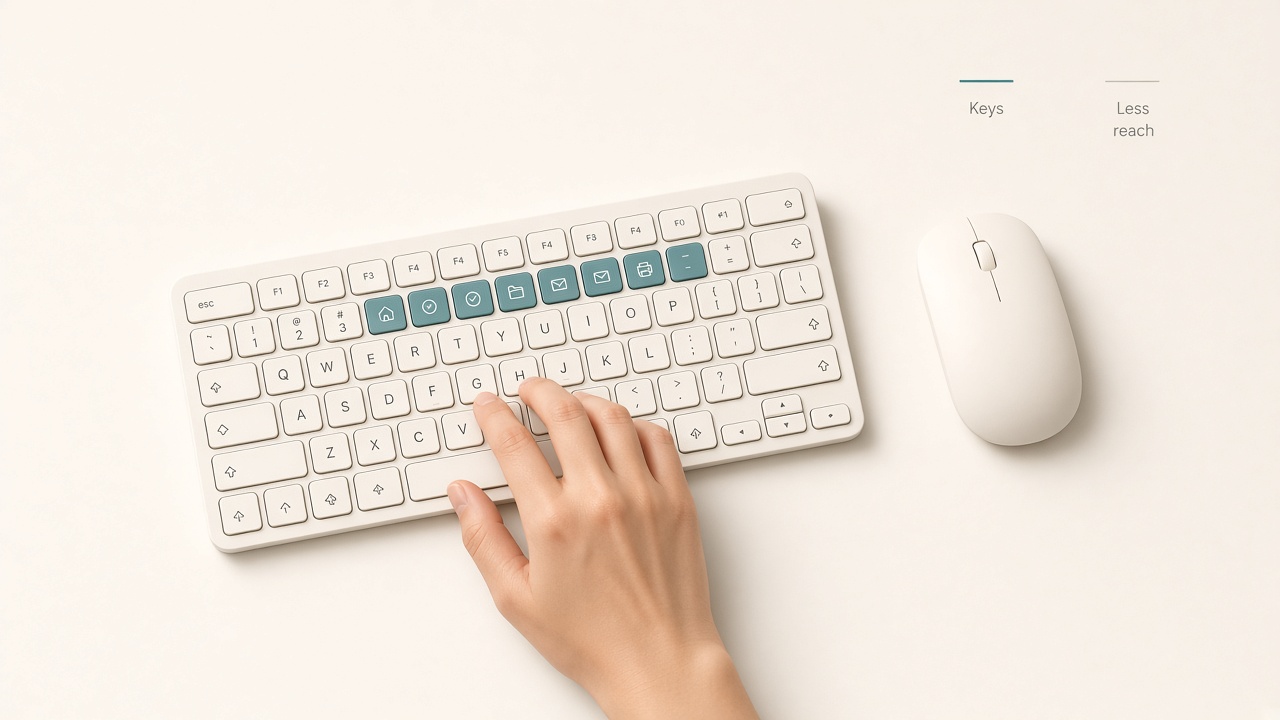
Keep high-frequency actions on the keyboard.
Why mouse reach becomes a desk problem
Every time you leave the home row to grab the mouse, you add shoulder and forearm travel, a tiny attention switch, and a chance to click the wrong window and travel again. On a compact laptop the cost is smaller. On a wide sit/stand desk with the mouse far to the right, the cost compounds across thousands of repetitions.
Fixing desk geometry still matters—see the desk height tools—but shortcut habits reduce unnecessary reaches even when the layout is already good.
Principle: optimize the top twelve actions
List what you actually do all day. For many knowledge workers the list includes switching apps, switching browser tabs, closing or opening windows, copy/cut/paste, undo/redo, save, selecting a line or word, jumping to line edges, search, new tab or document, screenshot or paste into chat, and zoom for readability.
If a shortcut does not hit this list, ignore it for thirty days. Breadth is the enemy of retention, and unused bindings fade faster than a clean short kit.
The core cross-platform kit
Memorize a boring core until it is automatic. Windows bindings are listed first, with common macOS equivalents in parentheses.
For window and app flow, use Alt+Tab (Cmd+Tab) to switch apps, Ctrl+Tab to move across tabs, Ctrl+W (Cmd+W) to close a tab, Ctrl+T (Cmd+T) for a new tab, and Ctrl+L (Cmd+L) to focus the address bar. Window snapping shortcuts reduce drag-heavy layout work.
For text editing, master copy/cut/paste, undo/redo, save, find, word-jump with Ctrl+Left/Right (Option+Left/Right), and line-edge jumps with Home/End or Cmd+Left/Right in many Mac editors. Add Shift to any movement key to select while moving. These alone remove a surprising amount of highlight-with-mouse behavior.
Add five role-specific shortcuts, not fifty
After the core kit is automatic, add five app-specific bindings tied to your job. Writers may prioritize emphasis shortcuts, heading styles, comment insert, find-and-replace, and outline toggles. Developers may prioritize command palette, go-to-file, terminal toggle, format document, and multi-cursor select. Spreadsheet roles may prioritize fill down, insert row, filter toggle, jump to data edge, and paste values.
Write your five on a sticky note under the monitor for one week, then discard the note. If you still need the note, you chose low-frequency bindings.
Reduce reach with layout, not only bindings
Shortcuts work better when the mouse is not a journey. Keep the pointer close to the keyboard’s side edge. Avoid placing it beyond a notepad moat. If you are left-handed or shoulder-sensitive on one side, try the mouse on the left for a week. Consider a compact keyboard so the pointer sits nearer the centerline. Raise or lower the desk so shoulders are not already elevated before you reach.
A shortcut habit plus a far-away mouse still leaves unnecessary travel on pointing tasks that remain. Measure the gap once with a ruler if you like precision; moving the mouse five to ten centimeters inward is often enough to make the remaining reaches feel cheap.
Training method that sticks
Do not study shortcuts as trivia. Run constraints. On days one and two, ban the mouse for text selection inside one app and use Shift plus movement keys. On days three and four, ban the mouse for tab and app switching during morning deep work. On day five, allow the mouse freely, notice which reaches still feel habitual, and replace the top offender with one new binding.
When you catch a reach, finish the action, then immediately repeat it once with the shortcut. That micro-replay builds memory faster than a wall chart.
Avoid the collapse patterns that kill shortcut projects. Downloading a ninety-key cheat sheet guarantees abandonment. Remapping everything in week one breaks muscle memory and invites blame on the concept. Ignoring selection shortcuts still sends you to the mouse for every edit. Using the mouse for zoom every hour recreates shoulder travel during long reading. Skipping the command palette in complex tools leaves nested menus as your default hunt pattern.
When the mouse is still the right tool
Shortcuts are not a purity contest. Use the pointer for precise graphic work, visually irregular spreadsheet ranges, drag-and-drop file organization when it is truly faster, and accessibility needs where pointing is preferable. The win is fewer redundant reaches, not zero mouse minutes.
A thirty-minute setup sprint is enough to start: confirm copy/paste/undo/save/find, learn app and tab switching, add five role shortcuts, move the mouse closer by several centimeters, and practice one constrained block today. That sprint beats a weekend of configuration theater.
Revisit the kit when your primary app changes. A new editor or browser can make last quarter’s five role shortcuts irrelevant. Keep the cross-platform core stable and rotate only the role layer. Shared or locked-down machines also favor defaults you can carry between devices without fighting IT remaps.
Checklist
- Listed the twelve highest-frequency desktop actions
- Mastered core copy/paste/undo/save/find without thinking
- Can switch apps and tabs without pointing
- Word-jump and selection keys work in the main editor
- Five job-specific shortcuts chosen—not fifty
- Mouse placed close to the keyboard
- One constraint drill scheduled this week
- Command palette learned for the heaviest app
- Zoom shortcuts available for long reading
- Cheat sheets retired after seven days of use
FAQ
Should I buy a split keyboard to reduce reach?
Maybe later. First shrink mouse distance and learn high-frequency bindings. Specialty keyboards help some people but add a larger adaptation cost.
What about mouse gesture tools?
Useful for power users. They still compete with attention if you install many at once. Add one automation only after the core kit is solid.
Do laptop trackpads make shortcuts less important?
They reduce shoulder travel but not attention switching. Shortcuts still speed text editing and window flow.
How do I learn shortcuts on locked-down work machines?
Stick to standard OS and app defaults. Avoid heavy remaps you cannot carry between devices.
Is remapping caps-lock worth it?
Yes for some writers and developers once basics are automatic. Make it a single change and live with it for two weeks before further remaps.
Related tools: desk height