Article
Ergonomic mouse vs trackpad for long days
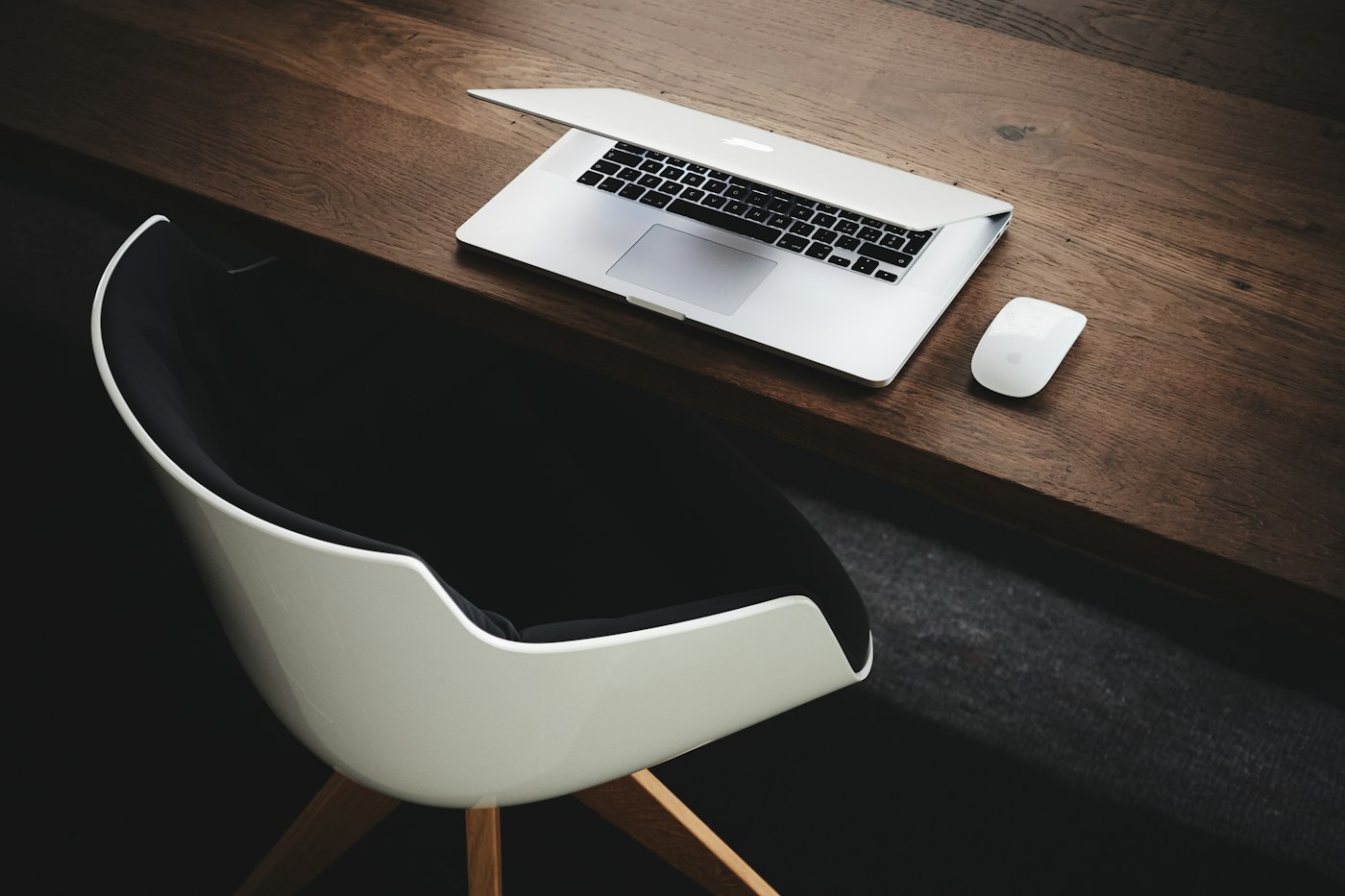
Pointing devices seem trivial until the third hour of drag-selects, timeline scrubbing, or spreadsheet navigation. The ergonomic mouse versus trackpad debate is less about brand tribes and more about reach, shoulder load, precision demands, and how often you leave the home row.
This guide helps you choose—and combine—devices for long remote-work days without medical promises or gear worship.
At a glance
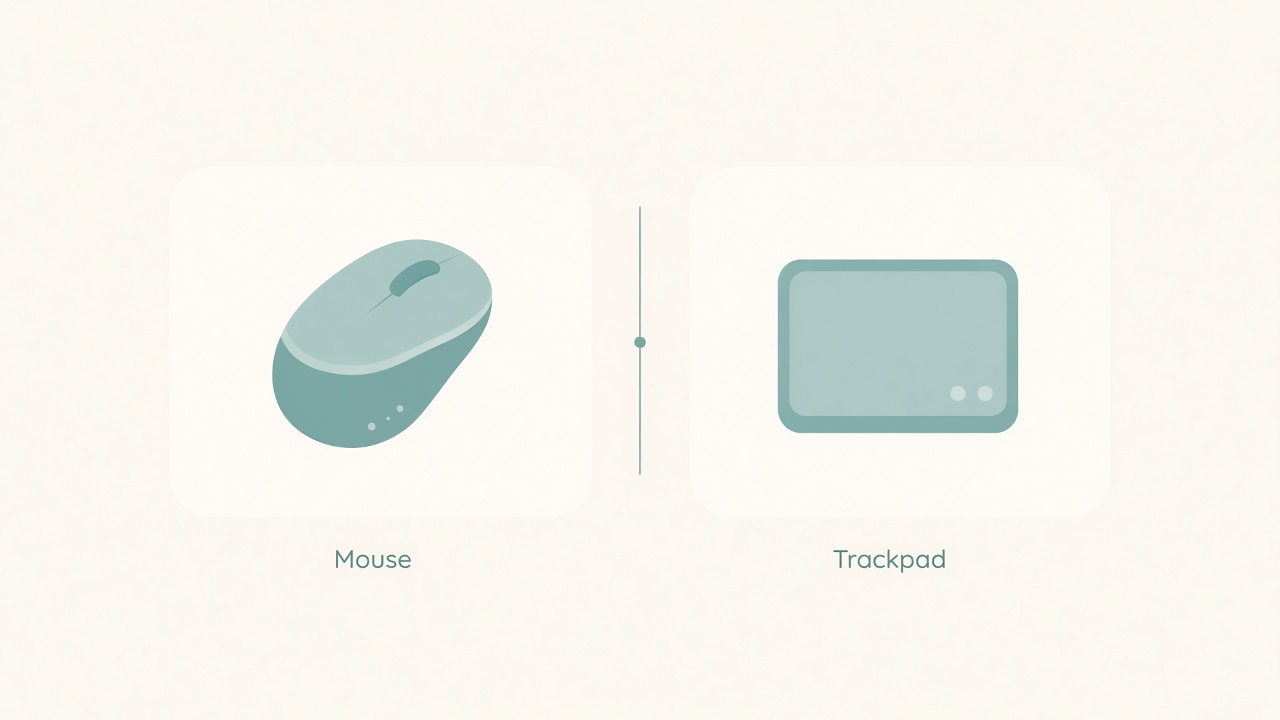
Choose the pointer that keeps shoulders quiet longer.
Start from the work, not the product category
Ask three questions. How precise are your frequent actions? How often do you drag? Where do your hands already live?
Pixel-level masking and CAD orbits differ from clicking links and scrolling documents. Long drags punish poor support more than casual clicking. Writers who stay on keys may prefer a trackpad gesture language; illustrators may want a puck, pen, or contoured mouse.
Write your top five weekly pointing tasks. The short list usually makes the answer obvious.
What a trackpad does well
A trackpad keeps hands near the keyboard and reduces large right-side reaches on compact desks. It supports multi-finger scrolls and workspace gestures that replace some hotkey hunting. It travels well for cafe and hybrid days. It encourages lighter touch when set to a sensible tracking speed.
Trackpads struggle when you need steady slow cursor control for fine graphics, or when your desk forces a sharp wrist extension on a high laptop deck. A laptop trackpad at sofa angles is a worse problem than a desk-level external trackpad.
What an ergonomic mouse does well
“Ergonomic” here means a shape that lets your hand rest in a more neutral posture than a flat puck—vertical mice, sculpted mice, or rollerbar-style devices included. People often notice less forearm twisting than with a tiny flat travel mouse, easier precision at low speeds for design and dense UI chrome, and extra buttons for common actions without hunting menus.
The tradeoff is placement. The mouse usually lives farther to the side, which can load the shoulder if the device sits too far, too high, or on a different level than the keyboard. A fancy shape in a bad place still loses.
Placement rules that matter more than shape
Keep the pointer on the same plane as the keyboard. Sit it close enough that your elbow stays near your side rather than reaching toward the desk edge. Match height so a mouse on a thick stack beside a low keyboard does not create a hike every click. For dual systems, disable the unused pointer so you do not fight two cursors.
If you switch to a vertical mouse, expect a short adaptation week. Drop tracking speed slightly at first so precision returns before you raise it again.
Hybrids and geometry first
Many long-day workers do best with both devices. Use a centered trackpad for writing, browsing, and gesture navigation. Keep a mouse on the dominant side for spreadsheets, design, or precision edits. Swap intentionally when a wrist or shoulder feels stale, as scheduled variety rather than panic.
Tablet and pen users should treat the pen as a third mode. Park the mouse during heavy ink sessions so the shoulder is not guarding two devices.
Before buying another device, check chair and desk height for shoulder shrug, mouse distance from a huge or off-center keyboard, a monitor that is too low, and years of one-arm scrolling with zero shortcuts. Geometry first, shopping second. A mid-range device in the right place beats a premium device at full reach.
Workload-specific recommendations
For writing and research, start with a quality external trackpad centered below or beside a compact keyboard. Add a mouse only if PDF highlighting and map panning feel clumsy after a week.
For spreadsheets and data entry, a mouse or trackball usually wins for cell-to-cell travel and drag-select accuracy. Pair it with keyboard navigation shortcuts so you are not mouse-only.
For design and photo work, prefer a contoured or vertical mouse for cursor precision, keep a tablet pen for stroke work, and use the trackpad as a tertiary gesture pad if you like workspace switching.
For heavy browser operations and tickets, either device works. Prefer whichever keeps your shoulder quieter during long scroll sessions, and map back or next-ticket actions to side buttons if you use a mouse.
For cafe and travel days, start trackpad-first. A tiny travel mouse is optional when you know the day is spreadsheet-heavy.
A one-week comparison protocol
On days one and two, use an external trackpad only for your normal workload and note shoulder fatigue and precision fails. On days three and four, use a contoured or vertical mouse only for the same tasks. On day five, hybrid by task type. Over the weekend, decide with notes, not with the excitement of unboxing.
Score annoyance moments: missed clicks, gesture mistakes, and the urge to shake out the arm. Buy based on scores.
Desk size and handedness constraints
On a narrow desk, a full-size keyboard plus a wide mouse creates forced reach. Solutions include a compact keyboard without a number pad, a centered trackpad, or a pointing device that lives closer to the centerline such as a rollerbar-style device or centered trackball. Measure the gap from the G key to the mouse palm rest; if your upper arm leaves your ribs to click, the desk plan is wrong regardless of device marketing.
If you are left-handed—or ambidextrous on long days—train both sides lightly for shallow scrolling so one shoulder does not own every pixel. Swap sides during admin batches even if create work stays on the dominant side.
Checklist
- Top five pointing-heavy tasks listed
- Keyboard and pointer on one plane within easy elbow range
- Tracking speed adjusted for precision before blaming the device
- Unused onboard trackpad disabled when an external pointer is primary
- One-week A/B notes completed before another purchase
- Gestures or extra buttons mapped to actions you actually repeat
- Shoulder reach visually checked from above with elbow near ribs
FAQ
Are vertical mice always better?
No. They help some hands rest with less forearm twisting, but awkward button reach or bad placement can cancel the gain. Fit and position decide outcomes.
Is a laptop trackpad enough for full-time remote work?
For writing-heavy roles with good shortcuts, often yes—especially with an external keyboard and raised display. For design, CAD, or heavy spreadsheet grid work, most people prefer a mouse or specialized controller.
What about a trackball or rollerbar?
Worth testing if shoulder reach is the main complaint; they keep the upper arm quieter. Precision preference is personal—use the same one-week protocol.
Should left-handed users mirror everything?
If you point left-handed, place the device on the left and consider left-friendly button mapping. Do not force right-side reaching to match a default office photo.
Can shortcuts replace a lot of pointing?
Yes. Learning a small set of window, text, and browser shortcuts shrinks pointer mileage more than swapping devices alone. Combine both approaches.