Article
Standing desk setup for tablet drawing
Designers who sketch on a tablet and type on a keyboard live in two postures that rarely share the same ideal desk height. A standing desk helps only when you treat drawing and typing as separate modes, not as one frozen height you hope will suit both.
This guide is for illustrators, UX designers, concept artists, and hybrid makers who bounce between stylus work and documentation. It covers geometry, angles, and a repeatable switch routine. It is not medical advice and does not endorse specific products.
At a glance
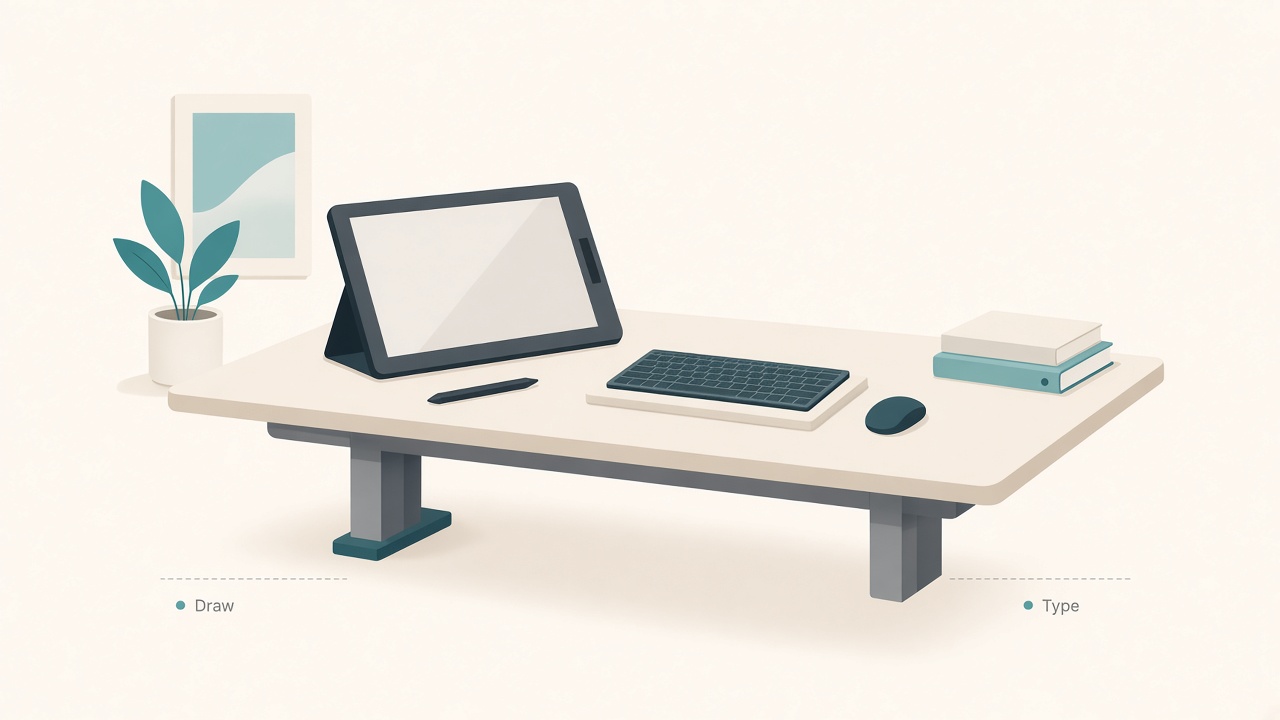
Different heights for drawing versus typing.
Why one height fails for tablet and keyboard work
Keyboard work wants forearms roughly parallel to the floor, wrists near neutral, and a screen at a comfortable viewing height. Tablet drawing often wants a tilted surface closer to the body, freer elbow arcs, and eyes looking down at a working plane more like a drafting table than a typing station.
If you lock the desk at typing height and drop a flat tablet on it, you shrug your shoulders and crane your neck. If you raise the desk for a standing drawing feel and then type, your wrists extend and your shoulders float. The fix is not a magic number. It is two saved heights plus a short mode switch.
Define two modes before you touch buttons
Name the modes so you stop improvising mid-session.
Mode A is Draw: tablet primary, keyboard optional or sidelined, stylus in hand. The goal is stable forearm support and a readable tablet angle without hovering elbows.
Mode B is Type: keyboard and pointing device primary, tablet parked or used as a reference pane. The goal is classic sit/stand typing geometry with the main display at a sane viewing height.
Write the two heights on a sticky note once you find them. Muscle memory beats guesswork after lunch, especially when a client call interrupts a sketch block.
Set Mode A: drawing height and tablet angle
Surface height while standing
Raise the desk until your elbows sit slightly below the tablet’s lower edge when your upper arms hang loosely. You should be able to rest the heel of your drawing hand lightly on the bezel or a soft palm rest without hiking your shoulders. If your shoulders rise as soon as long strokes begin, the surface is too high.
Seated drawing follows the same idea at a lower absolute height. Keep elbows near a comfortable angle relative to the tablet plane rather than locked into a shrug.
Tablet tilt beats flat glass
A flat tablet on a tall desk forces a steep downward gaze. Use a stand, folio kickstand, or adjustable arm that tilts the screen toward you, often in a gentle drafting range depending on tablet size and glasses. Tilt reduces neck flexion and keeps the stylus tip visible without leaning into the glass.
Keep the tablet centered in front of your torso. Off-to-the-side drawing while standing twists the spine for hours. If you need a second reference screen, place it above or slightly behind the tablet rather than far left or right of your drawing hand’s arc.
Support the non-drawing arm
Many people hover the opposite hand to pan or hold modifiers. Give that hand a resting place on the desk edge, a soft pad, or the tablet bezel. Continuous hover is a fatigue multiplier even when the posture looks acceptable in a mirror.
Set Mode B: typing height without undoing the draw setup
Move to your normal typing height so forearms are supported, wrists stay straighter, and shoulders stay down. External keyboard and mouse or trackpad should sit in one plane. Do not type on a tablet case keyboard at drawing height for long blocks.
If your tablet becomes a second display while typing, park it vertically on a stand beside the main monitor rather than flat in the keyboard zone. A flat tablet in the typing lane steals wrist space and invites awkward reaches.
Save Mode B as a memory preset if your desk has one. For hybrid creatives, the value of a standing desk is speed of switching, not standing all day.
A practical sit/stand rotation for sketch days
Standing often feels natural for short sketch bursts and reviews. Long rendering or detailing often wants a chair so micro-movements stay precise.
A workable pattern is fifteen to twenty-five minutes of warm-up sketches standing in Mode A, forty to sixty minutes of detail work seated in Mode A or Mode B depending on stylus versus keyboard needs, twenty to forty minutes of client notes or tickets in Mode B, and a later review pass standing again if attention dips.
Change height when the task changes. Timers help beginners. Task boundaries help designers who already know when a sketch pass has ended.
Mistakes that quietly break hybrid desks
One compromise height forever is the most common failure. You will favor whichever task hurts less and quietly abandon the other. A tablet parked far from the body is the next failure, because reaching forward for every stroke loads shoulders quickly.
Glossy glare also ruins drawing posture. Place task light beside or behind you rather than bouncing off glass into your eyes. Leave slack loops in stylus chargers and USB-C hubs so cables cannot tug the tablet mid-stroke.
Short stand blocks without footwear or a mat can be fine. Multi-hour barefoot stands on hard floors are not a useful endurance test for drawing quality.
Lighting and display settings for drawing modes
Drawing thrives on stable, glare-free light. Use a dimmable lamp on the non-dominant side so your hand does not cast a hard shadow across the canvas. Match tablet brightness to the room. Full brightness in a dim studio makes every glance at paper painful, while a dim tablet in a bright room invites hunching.
If you color-pick from a calibrated reference monitor, keep that monitor at Mode B viewing height and glance with your eyes rather than with a twisted torso. Avoid placing the only reference screen far opposite your drawing shoulder.
A five-minute mode-switch script
Practice a short script until switching feels cheaper than working around a bad height. Save or snapshot the canvas. Move the tablet to its Mode A angle or park it for Mode B. Hit the desk preset or move to the marked height. Slide the keyboard in or out of the centerline. Recheck light for glare on glass. Start a timer for the next task slice.
Running that script once or twice makes dual-mode work feel deliberate instead of chaotic.
Checklist
- Mode A and Mode B heights written down or saved as presets
- Tablet tilts toward you rather than staying flat at standing height
- Drawing surface centered to torso, not parked on the far mouse side
- External keyboard ready for Mode B without stacking on the tablet
- Light positioned to avoid specular glare on the glass
- Cable slack present so the tablet does not drift when you shift weight
- Sit option available for long detail work
- Mode-switch script practiced until it takes about five minutes or less
FAQ
Do I need a standing desk specifically for tablet art?
No. A fixed desk with a good chair and a tilting tablet stand can work well. A sit/stand desk mainly helps when you switch modes several times a day and want height changes without rebuilding a pile of books under the tablet.
What tablet angle should I start with?
Start around a gentle drafting tilt where you can see the full canvas without dropping your chin to your chest. Adjust until your neck feels quieter after fifteen minutes, not until a photo of the desk looks aesthetic.
Should the keyboard stay on the desk while I draw?
Only if it does not force the tablet sideways. Many designers slide the keyboard back or to a side shelf during Mode A. Ownership of the centerline matters more than keeping every device visible.
Is standing better for shoulders while drawing?
Standing can encourage weight shifts and shorter static holds, which some people find more comfortable. It is not a cure. Long static stands with a raised shoulder remain a poor bargain. Alternate positions, support the forearm, and stop if numbness or sharp pain appears. Talk to a qualified clinician for personal issues.
How do I handle keyboard shortcuts while drawing?
Map frequent modifiers to a small keypad, ExpressKeys, or on-screen controls within easy reach. Stretching to a far keyboard every few seconds defeats a careful Mode A setup.
Hybrid drawing setups succeed when Mode A and Mode B are explicit. Save both heights, tilt the tablet, and switch on purpose when the task changes.