Article
Remote onboarding desk checklist for new hires

Remote onboarding often obsesses over accounts and org charts while the new hire spends week one perched on a dining chair with a laptop at belly height. A workable desk is not a luxury perk. It is how people produce quality work without burning the first month on preventable discomfort and friction.
This checklist is for managers, IT partners, and new hires building a first home workstation. It is educational setup guidance—not medical advice.
At a glance
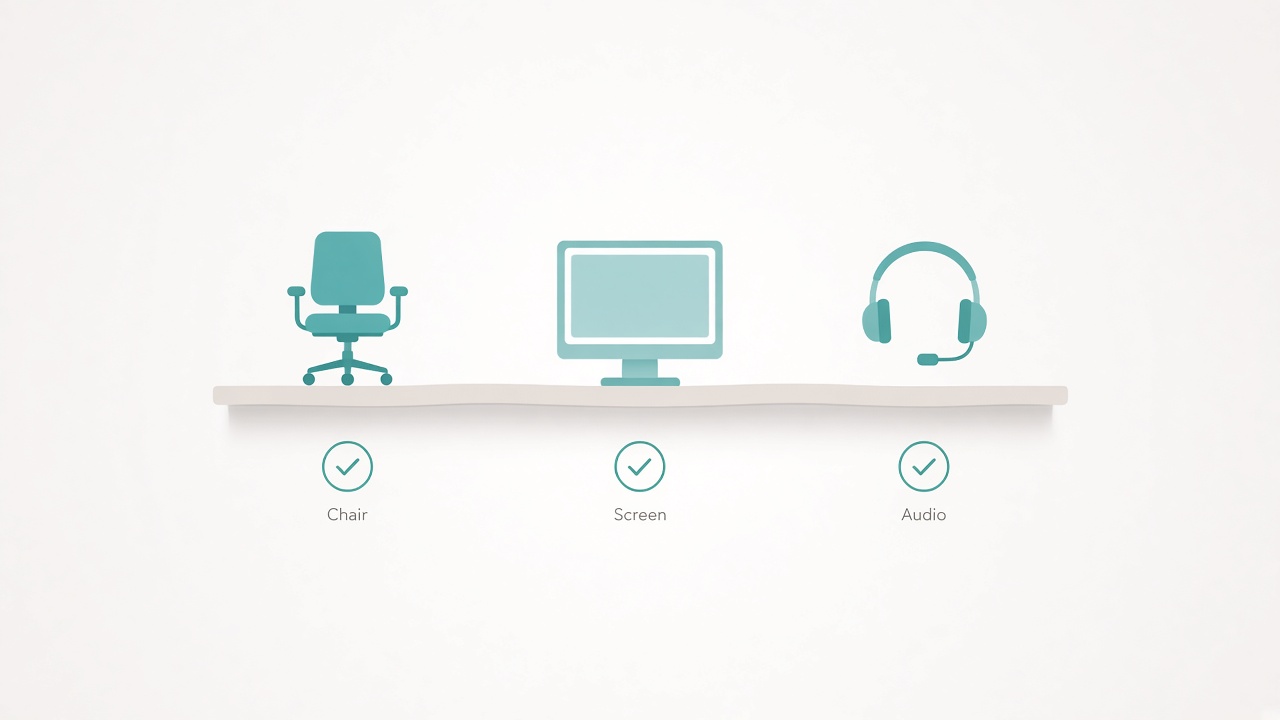
Chair, screen, and audio ready on day one.
Why desk setup belongs in onboarding
New remote employees already juggle identity, tools, and social uncertainty. A painful station adds a silent tax: shorter focus blocks, avoidance of video because the camera angle is awkward, and slower learning when every tutorial requires leaning into a dim screen.
Companies that ship a laptop and a welcome chat channel but no setup guidance accidentally outsource ergonomics to luck. Including the desk in onboarding removes that lottery.
Day 0: ship clarity, not only hardware
Before the start date, send a one-page desk primer. Cover what equipment the company provides—laptop, headset, and stipend categories. State what the stipend can and cannot buy in week one. Link internal IT booking and accessibility contacts. Note that temporary setups are fine if geometry basics are met.
If a stipend exists, recommend a purchase order: chair or desk-height fix first, then monitor and keyboard, then aesthetics. Geometry beats decoration.
Day 1: the minimum viable station
The goal on day one is not a showroom. It is a station that can survive a full workday.
Use a stable desk or table with room for a laptop plus external input devices, and enough depth for a viewing distance that does not force nose-to-glass posture. Choose a chair that allows feet supported and a roughly upright torso. If the only chair is a dining seat, plan a temporary cushion strategy and a real chair path within two weeks.
Provide an external keyboard and mouse if the laptop is raised, plus a laptop riser or stand—even a stable temporary stack for week one. Set screen height near a comfortable eye line for text work. Use the desk height and monitor distance tools as shared references so managers and hires talk about the same targets.
Confirm a tested charger path, a wired Ethernet adapter if Wi-Fi is unreliable, and a headset that works with the company call tool. Place the camera near eye level and put one light in front of the face for calls, not only a window behind the head.
Days 2–3: remove friction that blocks learning
New hires spend hours in docs, videos, and live sessions. Enlarge interface scaling before marathon tutorial days. Place a notepad in the primary reach zone for credential procedures that require writing. Create a dedicated onboarding browser profile so training tabs do not infect permanent bookmarks. If a standing desk is provided, confirm short blocks first rather than all-day standing heroics.
Managers should schedule a fifteen-minute setup office-hours call where the hire can tilt the camera and show the desk. Live feedback beats another PDF.
Days 4–5: social and meeting readiness
By the end of week one, the station should support belonging, not just tickets. Test mute, unmute, and screen share with a buddy. Ensure the headset is comfortable for multi-hour sessions. Agree on a background strategy that protects household privacy without heavy software drama. Confirm time-zone calendar settings so meeting load stays sane.
If the hire shares space with family, help them pick a simple visual signal for “on a call” rather than inventing corporate theater.
Manager checklist
- Stipend and shipping timelines confirmed before day one
- Accessibility needs asked privately and early
- Day-one minimum station validated on video
- External keyboard, mouse, and riser status known
- Network reliability checked for calls and VPN
- Onboarding buddy assigned for setup questions
- Week-one meeting load capped enough to allow arrangement time
- Follow-up scheduled for day ten on comfort and remaining gear
New-hire checklist
- Feet supported while typing
- Screen raised; external keyboard used if laptop elevated
- Brightness roughly matched to room light
- Primary work apps installed and signed in
- Headset and camera tested with a real teammate
- Power brick and cable route will not snag chairs
- Water and breaks planned on training-heavy days
- Known issues written down for IT rather than endured silently
Common onboarding desk failures
Leaving the laptop flat for eight hours of videos postpones a fix that temporary materials could provide on day one. Spending the stipend on decor before a chair prioritizes appearance over contact points and viewing geometry. Assuming every apartment has a spare room shames people who need a two-zone living-room plan. Skipping a quiet audio test makes the first live all-hands the first audio test. Ignoring accessibility leaves specific input devices, captions, or lighting needs undiscovered until frustration peaks.
Budget paths when money is tight
If stipends are small, sequence purchases. Start with a free or cheap riser plus external keyboard and mouse. Improve the chair next—a used office chair often beats new decorative seating. Add a single external monitor. Add a task lamp. Save nice-to-haves for last.
Companies can also offer a loaner monitor program for the first ninety days. Temporary gear still beats no gear.
Measuring success without surveillance
You are not monitoring posture. You are removing blockers. Success looks like a hire who can attend calls without audio panic, complete training modules without constant lean-in, know who to ask for equipment exceptions, and start week two with fewer setup emergencies.
Ask in one-to-ones what still feels temporary at the desk, then act.
Week-one summary checklist
- Written equipment policy sent before start
- Minimum viable station achieved on day one
- Height and distance roughly sane for text work
- Call audio and video verified with a human
- Stipend purchases prioritized by geometry
- Buddy and manager setup check completed
- Day-ten comfort follow-up booked
- Accessibility path documented
- Network fallback identified
- Onboarding browser profile clutter contained
FAQ
Should every remote hire get a standing desk immediately?
Not necessarily. A stable sitting setup with good height often matters more in week one. Standing desks help when the person wants them and learns short swap schedules.
What if the new hire lives somewhere tiny?
Focus on a foldable or shared surface with clear work blocks, cable discipline, and a good headset. Layout creativity beats insisting on a spare bedroom.
How much should managers insist on camera-on?
Prefer clarity and consent. Good lighting and camera height help; mandatory cameras during every training hour can exhaust people in shared homes. Use purpose-driven camera norms.
Can temporary book risers be part of official onboarding?
As a bridge, yes—if stable and paired with external input devices. Replace with a proper stand when possible.
Who owns the checklist—IT or the manager?
Both. IT owns accounts and approved devices; managers own time, buddy support, and the human check-in that confirms the station works in real life.
Related tools: desk height · monitor distance